Plan and lead eight weeks of drama-led communication, with practical guidance for preparation, access and review. Begin with the teacher desk, then choose the activity and communication routes that suit your group.
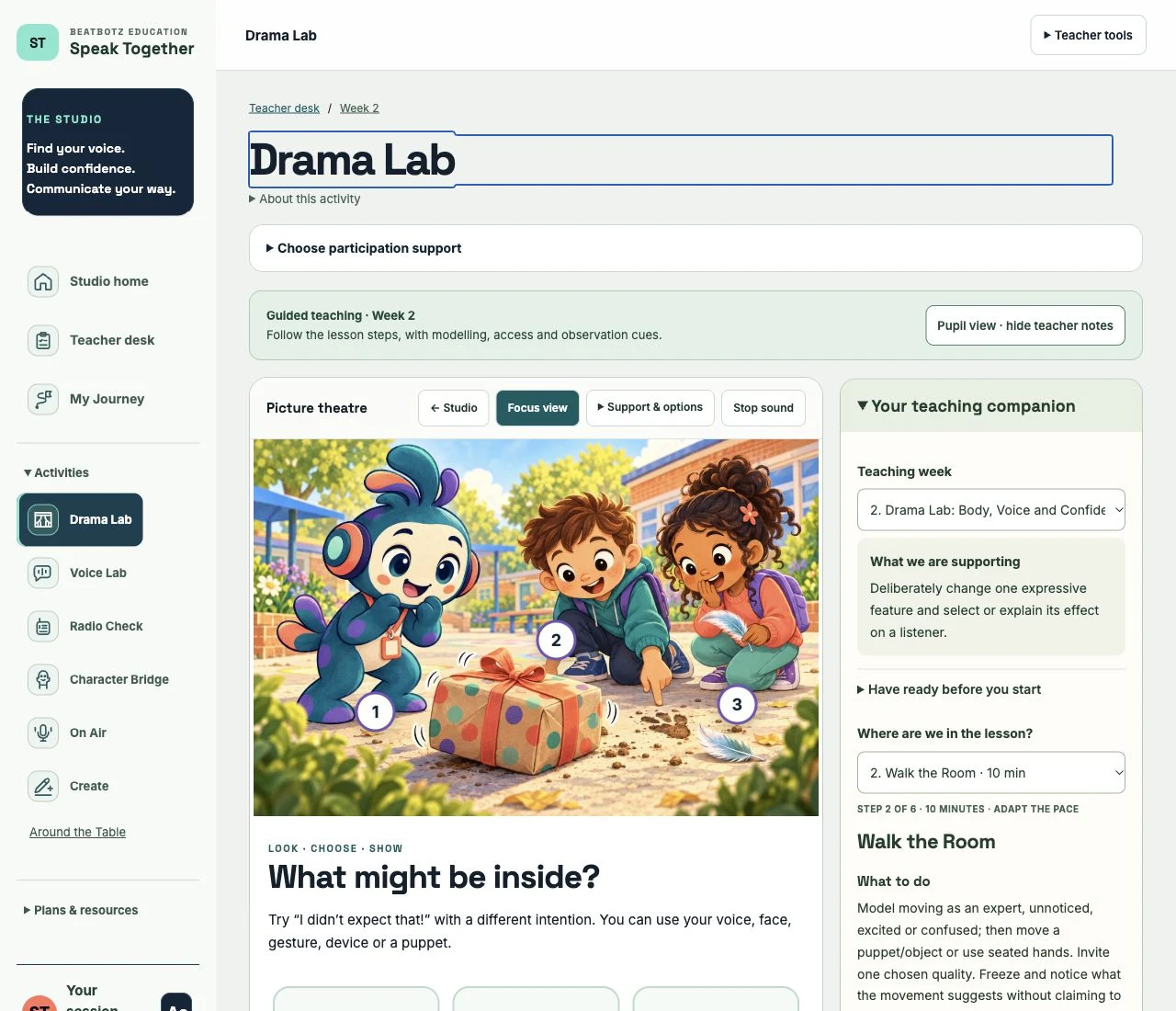
From the teacher desk, choose the week and Start guided week. The activity opens with a teaching companion: preparation, the communication purpose and timed teaching steps. Each step gives what to do, a model invitation, what to notice, access options and a next teaching move.
On a larger screen, the companion sits beside the activity. On smaller screens it appears above it. Use Pupil view to show the activity without adult notes; Exit focus view brings the guide back. The complete teacher manual is available by week and as a printable PDF.
Find what you need
The teacher desk starts with the week, preparation essentials and one activity button. Open teaching notes or adult reflection when needed. Activities keep extra controls under Support & options; Focus view gives the activity the screen. Quick review leads the impact desk; structured observations open separately.
Five minutes to get familiar
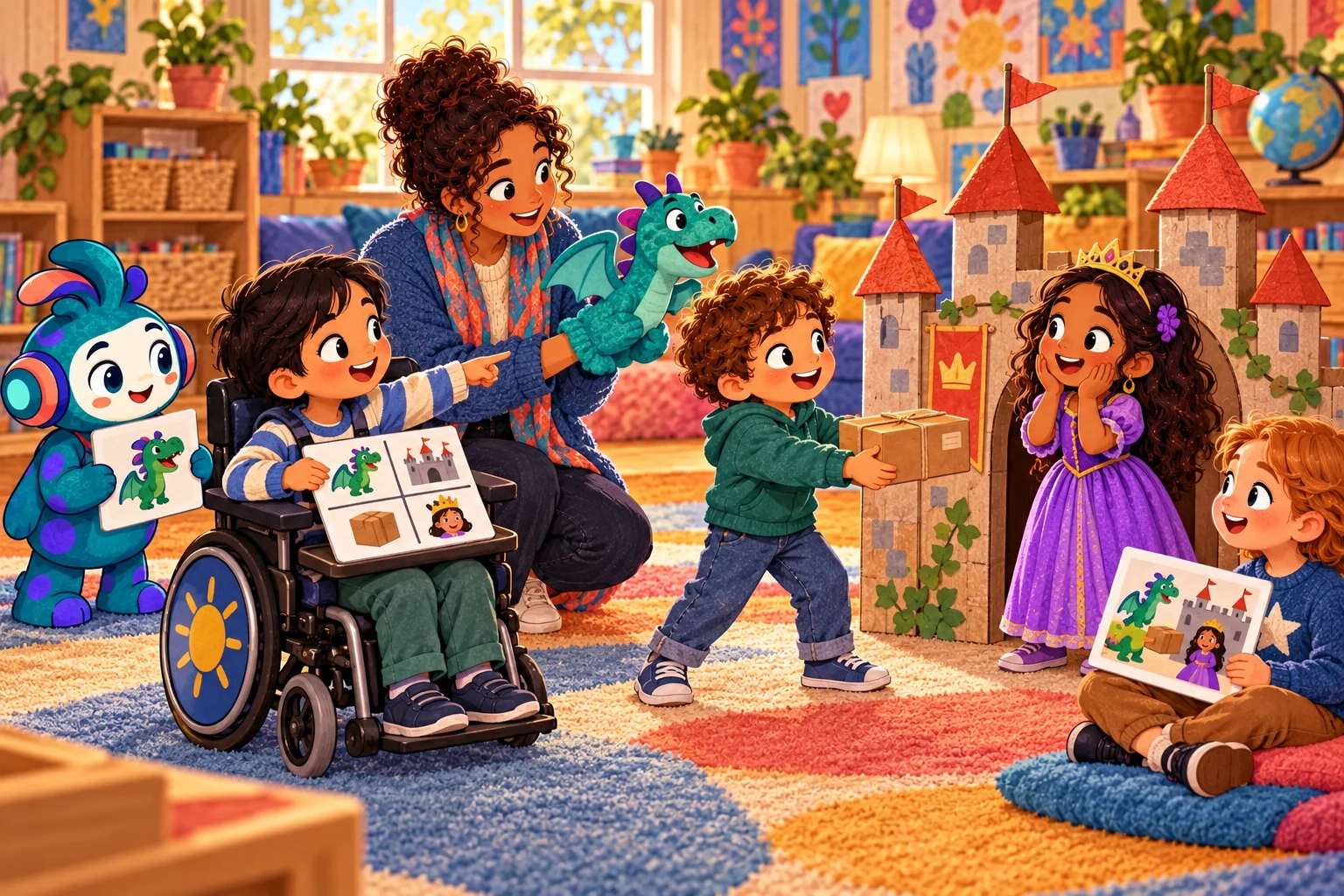
Make an offer (45 seconds). Open Drama Lab. Model “That’s brilliant” with two intentions, using a gesture or puppet. Invite a pupil to select, mirror, watch or pass. Discuss the message rather than performance quality.
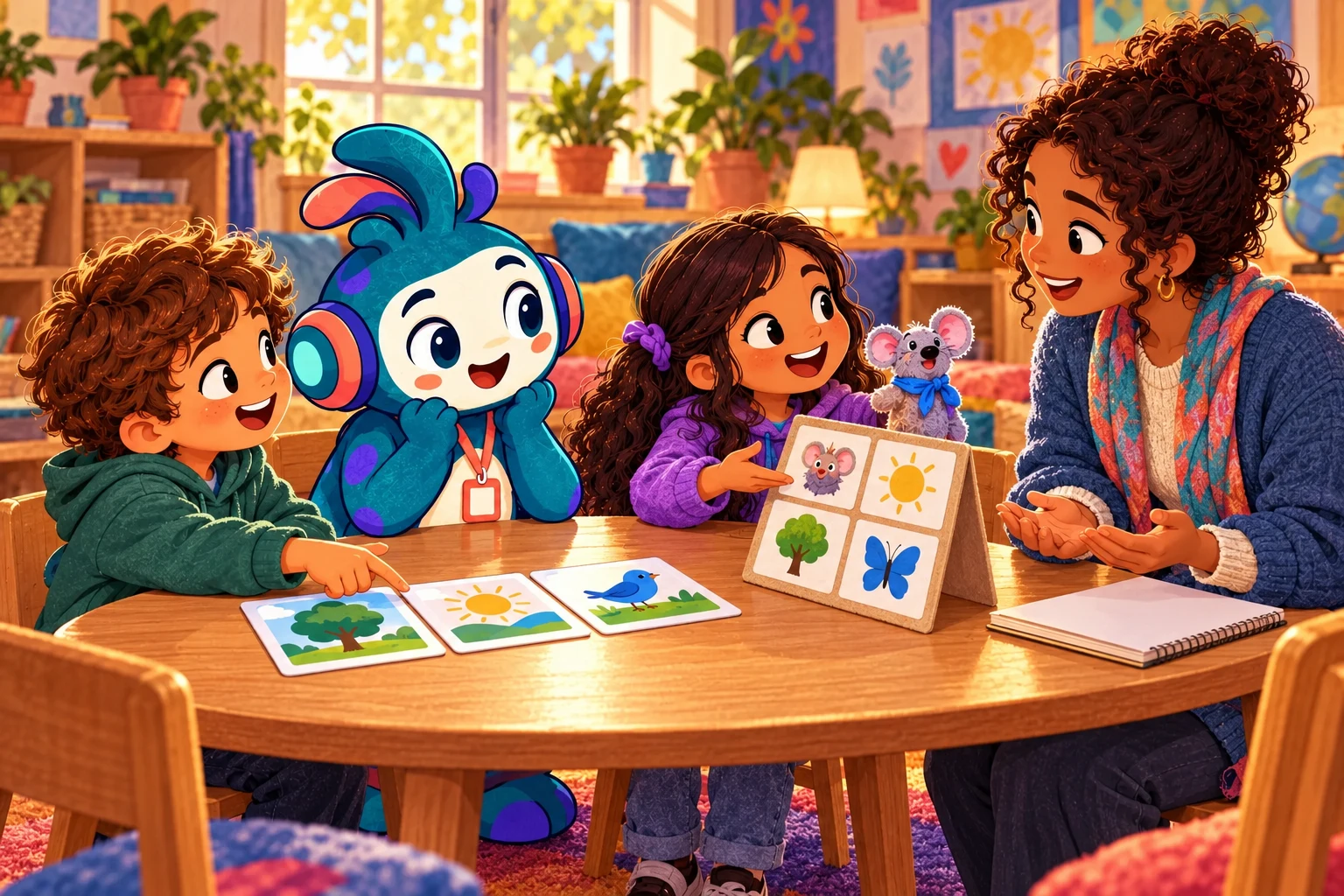
Make access tangible (45 seconds). Open the communication board. Select “I need time” or “I have an idea”. Read the choice as a partner, or use a local device voice if one is available. Pupils retain their usual AAC and symbols.
Give listening a purpose (45 seconds). In Radio Check, give directions in Pip’s mission. Open the facilitator tools for the hidden-model information gap; keep the target hidden, ask a repair question, compare and swap roles.
Let fiction carry the message (60 seconds). In Character Bridge, choose a character and a viewpoint about a quiet corner. Add a reason. Rehearse using text, AAC or an anonymous adult test recording. Choose an audience, then step out of role.
Create and notice (45 seconds). In Create, arrange three story pictures and name a communication role. In My Journey, capture a real observed moment and next step. Try downloading an anonymous snapshot so you know how to keep the session notes.
Plan your next facilitation move (60 seconds). In the teacher desk, choose a week, open “This week’s teaching notes” for a facilitation cue and record one move the teacher will practise next. Choose a practical next step for classroom delivery.
Prepare, embed and review
Staff training: a practical 180-minute workshop, weekly practice and huddles. Around the Table: eight optional drama-to-everyday routines, with practical guidance and food-free routes. Impact desk: separate pupil/teacher observations, comparable pairs, optional feedback, CSV and JSON export/import.
During staff practice, try a table invitation and another communication route. Enter invented starting/end observations in the impact desk to learn the review process before collecting real observations.
Choose and revisit pictures
Drama Lab and Voice Lab share twelve picture situations. Use Choose a picture to select one directly, Practise this scene again to revisit it, or Try a new situation to explore the strategy elsewhere. Drama prompts focus on intention and audience; Voice Lab prompts invite noticing, explaining and questioning.
Use everyday invitations and directions in early sessions; try an imaginative problem for Yes… and… or a short story. Keep a familiar scene and the same supports when comparing observations; record a new situation as a different context.
Build a sender target
In Radio Check, open the planning tools. Choose shapes or picture props, then use a ready-made target or Build my own target. Select a piece, then a space. Hide the sender’s target before the listener builds. The listener’s chosen-piece preview shows what will be placed; Empty clears a space. Compare together to find something to check or repair.
Set the scene in On Air
Reveal a prop, then change its purpose to move between an invention workshop, another planet, a museum, a tiny explorer’s world and a pigeon market. Each setting has a matching background and optional short sound cue. You can switch the background off and continue quietly. Sound never starts automatically.
Preview the setting with pupils and agree whether a cue would help. Use Play sound cue once, Stop sound cue to end it, or the activity’s Stop sound. The written cue remains available. Sounds are original local audio files; nothing is recorded or uploaded. Backgrounds also support the presentation prompts below.
Present with a co-host
In On Air, choose Presenter’s playground. Choose an idea, a trusted audience and solo, friend or staff support. Agree whether a partner shares lines, carries a pupil-selected AAC/text message, cues pictures/sound or takes over at a signal.
Five presentation parts give a clear route from an opening to an ending. Preview a playful turn or reveal one when ready; it can change the setting or invite another way to explain the idea. Thinking time, passing a prompt and returning to the original idea stay available. The activity has no scoring, voting or audience accounts.
Build and rehearse a story
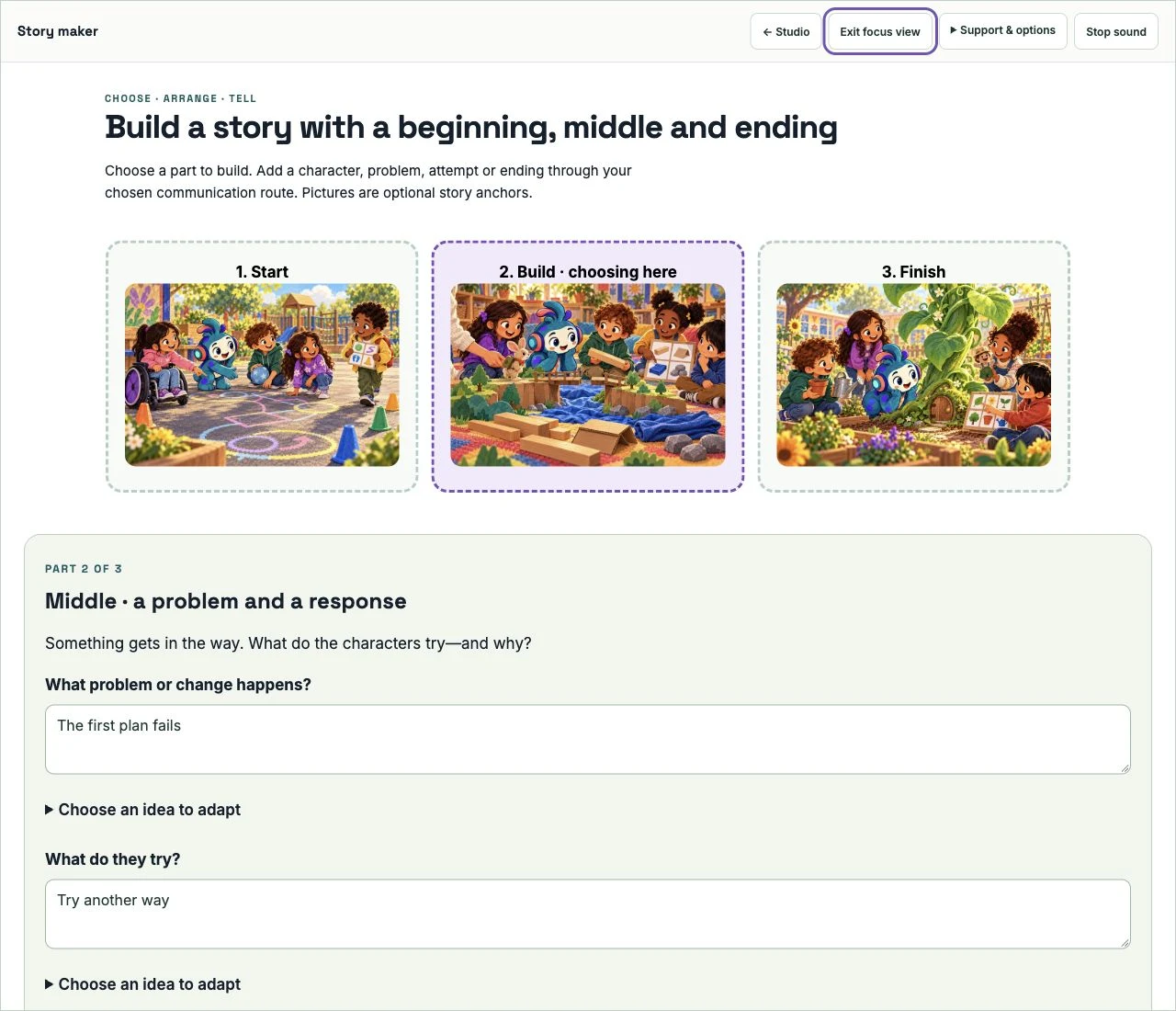
In Create, choose a beginning, middle or ending. Prepare who and where, a purpose, a problem and an attempt, then decide what changes. Ending directions include resolved, partly resolved, unresolved, a twist or an open question. Use the labelled suggestion cards or your own ideas; a partner can scribe a pupil-selected message.
Choose optional pictures from the twelve-scene bank, then use Rehearse my story together to move through each part and invite an audience response. Try another ending returns to the ending planner without replacing the pupil’s idea. The story download includes the three pictures and all plot layers; the Studio snapshot keeps the planning fields and picture choices.
Prepare for a classroom session
Plan a guided starting group of around 4–6 pupils, adapted to access and available staff. Each full lesson has 55 minutes. For a class of 30, use separate small-group slots or supervised practice rotations; short rotations are not equivalent to the full lesson. Plan group delivery. Keep an opening check-in, playful warm-up, modelled skill, purposeful challenge and closing reflection. The sequence is developmental; Continue, Consolidate or Extend according to access and observations.
Use neutral fictional prompts. Do not invite personal disclosure. Keep observe, pass, pause and return routes visible.
Prepare individual AAC vocabulary and familiar symbols before the session. The general visual cue board is not a clinical AAC system or a licensed symbol library.
Support sitting, movement through an object, signing, gesture, writing, partner communication and listening first. Speech and public sharing are optional.
Choose a manageable audience. No compulsory eye contact, live voice, recording or performance.
For character work, explain the fiction boundary and practise stepping out. The character’s view need not be the pupil’s.
Agree recording permissions, access to downloads, retention and deletion using school policy. Use anonymous adult examples for demonstrations.
Picture clues, expression/audience prompts, communication choices and Start / Build / Finish planning. Rehearsal and expression happen with people in the room.
Communication board
Build, edit and transfer messages. Selectable visual cues and text; partner reading always available. Only explicitly local browser voices are used. If none are available, the app explains the alternative.
Radio Check
Keyboard/tap maze delivery with three challenge options, wall feedback, text map and optional next-step clue, plus a hidden 3×3 model, rebuild board and position comparison. This is a shared-device or physical partner task, not a networked two-device link.
Character Bridge
Character selection, in-role text, optional browser recording, local audio import/playback and download. Simple amplitude-driven mouth overlay; not phoneme lip sync or a video exporter. Effects alter playback only.
On Air
Picture questions, digital/real prop prompts, debate and recovery phrases, matching worlds, opt-in sound and a supported Presenter’s playground. Optional timers and expanded activity view. No live broadcast or external sharing.
Create
Beginning, problem/attempt and flexible ending choices, three-picture anchors, interactive rehearsal, roles, goals and downloadable production plans. Audio/video editing and finished production use school-approved tools; this is not a media editor.
My Journey
Observations, separate baseline/current strand descriptors, starting point and next-step fields. Download/import JSON snapshots; readable journey export. No combined score, diagnosis or automated assessment.
Teacher desk
All eight weekly schedules, pedagogy cues, access preparation, transfer prompts and a downloadable staff reflection. A tool for facilitation; it does not deliver accredited training.
Around the Table
Eight weekly scenes, selectable/editable message cues, local speech fallback and pass/stop controls. Teacher-led drama and optional everyday practice; no recording or food requirement.
Impact desk
Anonymous coded observations, pupil feedback and teacher confidence kept separate, comparable starting/Week 8 pairs, CSV/template and validated JSON restore. Tab-local evidence organiser, not a validated assessment or shared school database.
Current scope
The working tools support teacher-led delivery. Shared school accounts, longitudinal records and validated assessment are outside this demonstration.
Data and device behaviour
No accounts, analytics, cloud database, AI calls or upload endpoints are added to The Studio. Studio session notes and the separate impact desk use this tab’s sessionStorage. Clear each workspace separately. The Around the Table message stays in memory only and clears on reload. Session notes survive refresh and may be restored by the browser; closing a tab is not a guaranteed deletion procedure. Use Clear session on shared devices and delete downloaded files through the school’s normal process.
Studio snapshots contain plans, observations and the three story-picture choices, but not audio or live game progress. Audio stays in browser memory; download it before leaving Character Bridge. Leaving stops playback/recording. Clear session resets plans and activity state. Downloaded files remain on the device.
Recording requires HTTPS or localhost, browser microphone permission and school permission. Local voices, audio formats, playback effects and native fullscreen vary by browser. A partner, AAC, text and the expanded view remain available. No TTS text is submitted to a remote voice by this application.
Existing links elsewhere on the original Beatbotz site and optional editor links can open external services. Those services are not integrated or approved by this demonstration; do not enter pupil data without school approval.
Before pupil use
Run the supplied device checks on the actual school setup: keyboard and switch access, screen reader, zoom, touch, local voice availability, microphone grant/denial, AAC audio format and permissions. Test with adults and anonymous content. Confirm access choices with pupils and staff; automated checks cannot certify accessibility or suitability.
The programme is educational, not therapy or a diagnostic tool. The teacher remains responsible for safe challenge and decisions about support.